Log in to AIRSTAGE Cloud
Login screen
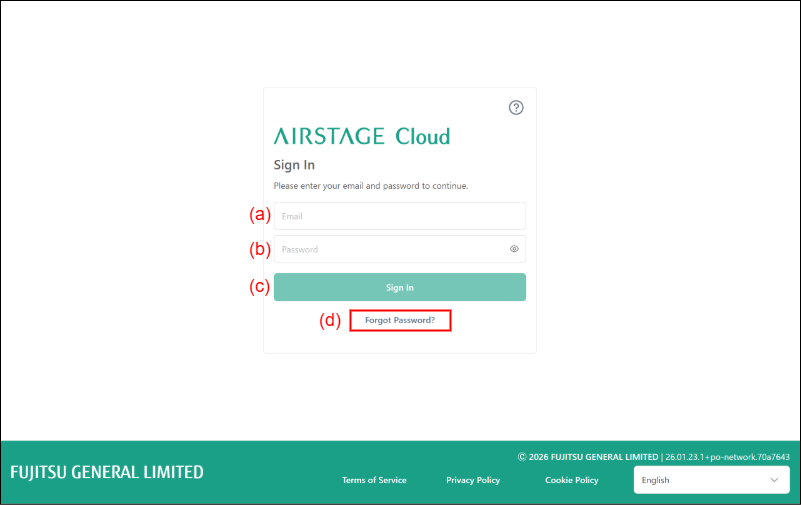
Access to AIRSTAGE Cloud from your PC or smart device.
- Input your e-mail address to (a), and your password to (b).
- Select the button (c).
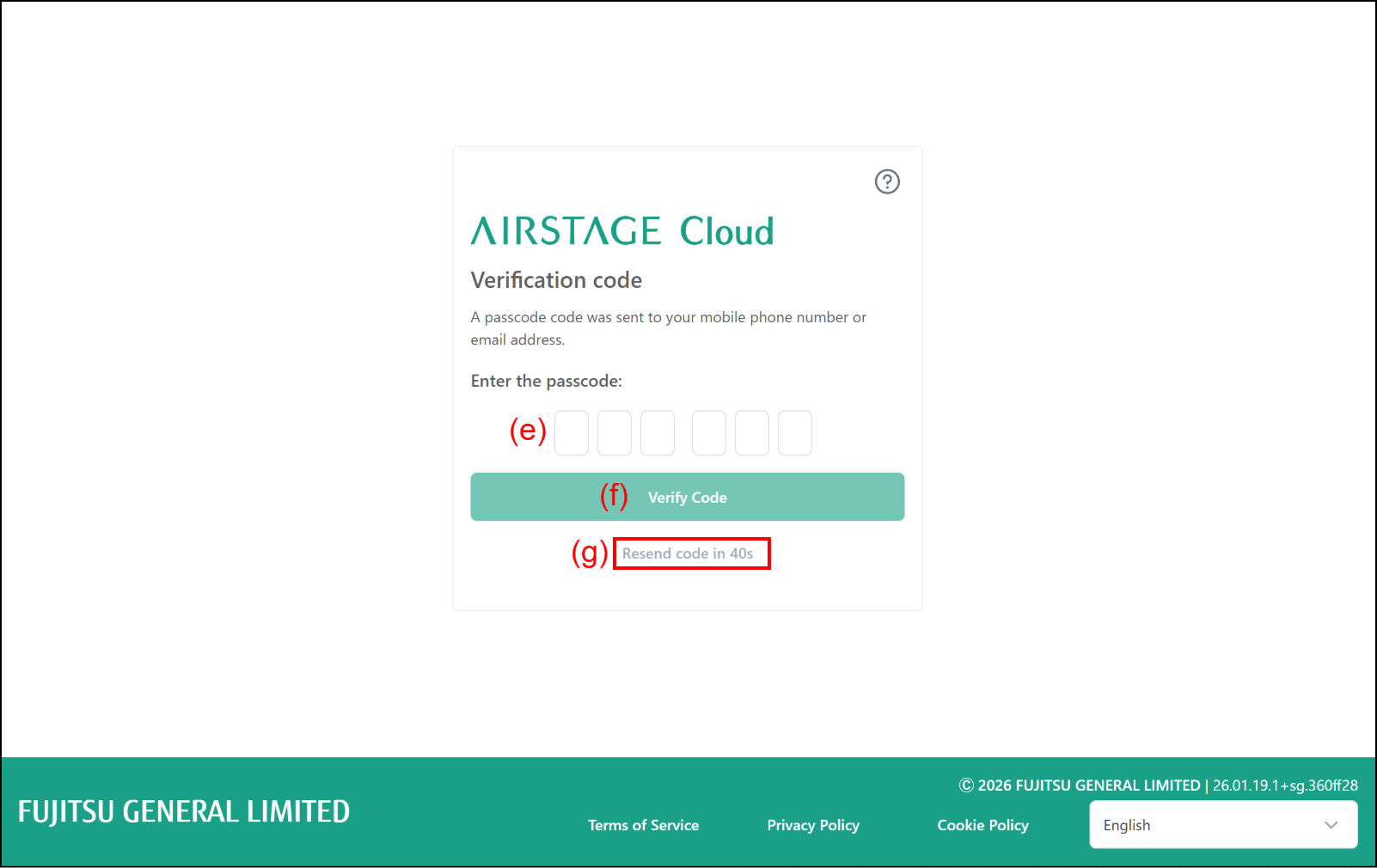
If you have activated the multifactor authentication, the screen will move to the "Enter Verification Code" screen and the verification code will be sent to your smart device.
If not, the screen will move to the Portfolio dashboard screen. Refer to "Add Site (for Initial Setup)" for the following procedures.
If you forget the password, select (d). For the following procedure, refer to "When you forget your password".
"Enter Verification Code" screen
- Enter the verification code to (e).
The verification code is sent to your smart device by mobile SMS. - Select the button (f).
The screen will move to the Apphub screen.
If you go back to the Login screen, select the button (g). (If the verification code is not entered within 45 seconds, it will become selectable.)
Apphub screen
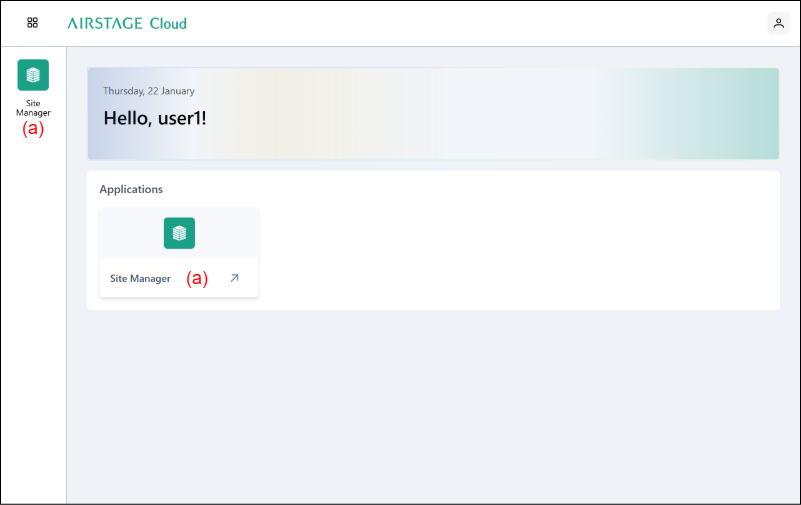
(a) Click on Site Manager to launch the Site Manager application, and the screen transitions to the Portfolio Dashboard. Refer to "Add Site (for Initial Setup)" for the following procedures.